Group Schedule Report
1. Overview
The Group Scheduled Reports feature allows administrators to automatically send scheduled reports to users within a group.
Administrators can configure the report subject, delivery frequency, delivery time, login access through a Magic Link, and PDF attachments containing dashboard snapshots.
This feature helps group members receive regular dashboard updates directly through email without needing to manually access the portal each time.
2. Accessing Group Scheduled Reports
Navigate to the Manage section of the Group Scheduled Reports area.
Administrators can configure and manage scheduled reports from this section.
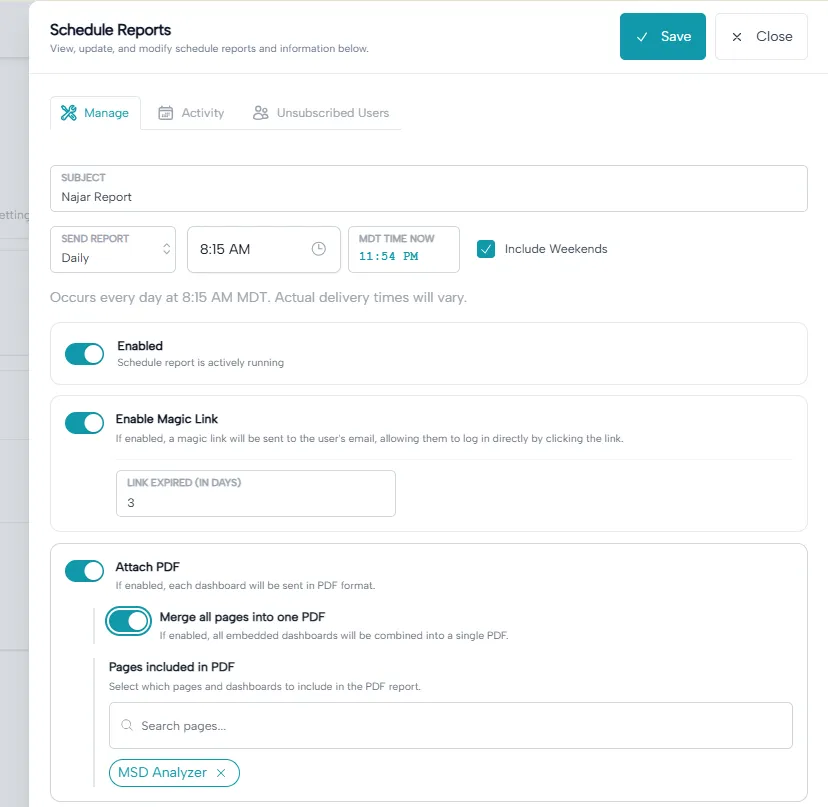
The interface also provides two additional sections:
- Activity: View scheduled report activity.
- Unsubscribed Users: View users who have unsubscribed from scheduled reports.
3. Configuring a Scheduled Report
3.1 Report Subject
Enter the email subject that recipients will see when they receive the scheduled report.
For example: JK | Paul report
3.2 Report Delivery Frequency
Administrators can select how frequently the report should be delivered.
Available scheduling options:
- Daily: Automatically sends the report every day.
- Weekly: Sends the report once a week.
- Monthly: Sends the report once a month.
3.3 Delivery Time
Select the preferred time for sending the scheduled report.
The system displays the current time in the configured timezone (MDT in the example shown).
A timezone indicator helps administrators understand the timezone used for scheduling.
Note: Actual email delivery times may vary slightly depending on processing and email delivery services.
3.4 Include Weekends
Administrators can enable or disable the Include Weekends option.
- When enabled, scheduled reports can also be delivered on weekends.
- When disabled, weekend delivery is excluded.
4. Enable or Disable Scheduled Reports
The Enabled toggle controls whether the scheduled report is actively running.
- Enabled: The system automatically sends reports according to the configured schedule.
- Disabled: Automatic report delivery is paused.
Administrators can enable or disable the schedule whenever required.
5. Magic Link Configuration
The Enable Magic Link option allows recipients to access the portal without entering their passwords.
When this option is enabled:
- The system sends a Magic Link to the recipient's registered email address.
- The recipient opens the email and clicks the Magic Link.
- The link allows the recipient to log in directly to the portal without manually entering their credentials.
Link Expiry (in Days)
Administrators can define how many days the Magic Link remains valid.
For example, if the expiry value is set to 3 days, the Magic Link remains valid for three days.
After the configured expiry period, the link becomes invalid.
6. Attach PDF Reports
The Attach PDF option allows administrators to include dashboard snapshots as PDF attachments in scheduled report emails.
When this option is enabled:
- The system generates PDF snapshots of the selected dashboards.
- The generated PDF files are attached to the scheduled report email.
- Recipients can view the dashboard information directly from the PDF attachment without opening the portal.
6.1 Merge All Pages into One PDF
Administrators can enable the Merge All Pages into One PDF option.
- Enabled: All selected dashboard pages are combined into a single PDF document.
- Disabled: Each selected dashboard is generated and attached as a separate PDF.
This option provides flexibility depending on how recipients prefer to access their reports.
6.2 Select Pages Included in PDF
Administrators can select which pages and dashboards should be included in the scheduled PDF report.
The page selection area provides:
- A search field to quickly find available pages.
- The ability to select multiple pages.
Only the selected pages and dashboards will be included in the generated PDF report.
7. What Will Group Users Receive?
Depending on the administrator's configuration, recipients can receive the following:
Scenario 1: Magic Link Only
When Magic Link is enabled and PDF attachment is disabled:
- Recipients receive an email containing the Magic Link.
- They can click the link to access the portal without entering a password.
- No PDF dashboard attachment is included.
Scenario 2: Magic Link + PDF Attachment
When both Magic Link and Attach PDF are enabled:
- Recipients receive an email containing the Magic Link.
- The email also includes the selected dashboard snapshots as PDF attachments.
- If the merge option is enabled, all selected dashboards are combined into one PDF.
- Otherwise, dashboards are attached as separate PDF files.
Scenario 3: PDF Attachment Only
When PDF attachment is enabled and Magic Link is disabled:
- Recipients receive the scheduled email with the selected dashboard PDF attachments.
- No Magic Link is included.
8. Managing Scheduled Reports
Administrators can update the scheduled report configuration whenever necessary, including:
- Changing the email subject.
- Updating the delivery frequency.
- Modifying the scheduled delivery time.
- Enabling or disabling weekend delivery.
- Enabling or disabling Magic Links.
- Updating Magic Link expiry.
- Enabling or disabling PDF attachments.
- Changing the selected dashboard pages.
- Enabling or disabling the PDF merge option.
These settings allow administrators to manage how and when group users receive their scheduled reports.